How to Bypass the Google Drive Download Limit (100% Working)
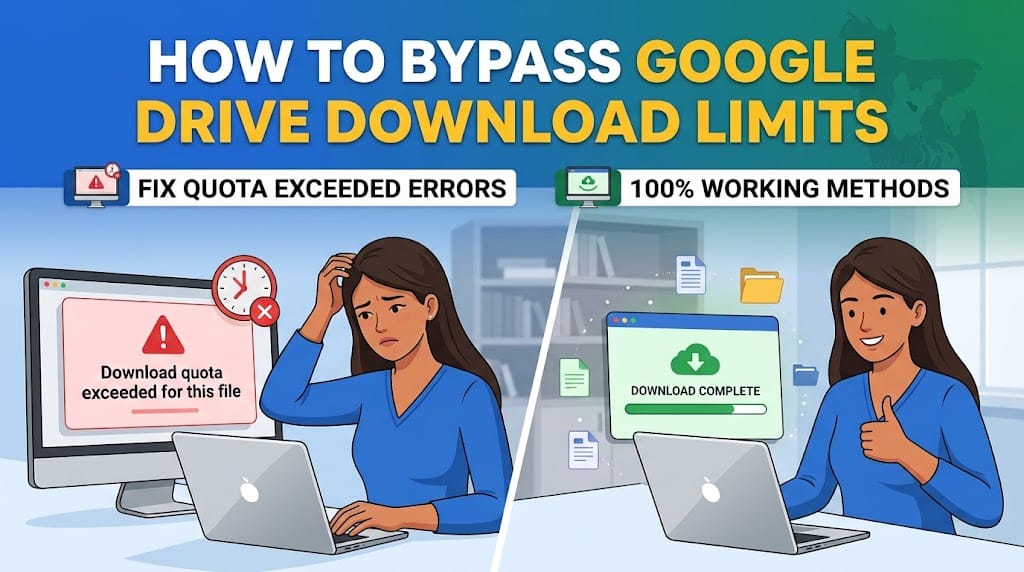
Getting the “download quota exceeded for this file” error? Learn 3 proven, safe, and quick methods to bypass Google Drive limits and download your files instantly.
How to Bypass Google Drive Download Limits (Fix Quota Errors)
Quick Answer: If you are trying to download a shared file and receive the download quota exceeded for this file error, the most reliable way to bypass it is the “Make a Copy” method. Simply log into your Google Account, open the file link, click File > Make a copy (or right-click to copy), and download the new copy directly from your personal My Drive. Because the copy generates a brand-new file ID, it has zero traffic and instantly bypasses the download restriction.
You clicked on a shared Google Drive link expecting a quick download, but instead, you are greeted with a frustrating roadblock: “Download quota exceeded for this file, so you can’t download it at this time.”
This error leaves you stranded with no estimated wait time and no official “unlock” button. Fortunately, you don’t actually have to wait 24 hours for the limit to reset.
In this guide, we will explain exactly why this happens and provide three safe, proven methods to bypass the Google Drive download limit in under two minutes.
What Causes the “Download Quota Exceeded for This File” Error?
Google Drive is designed for personal cloud storage, not massive file hosting. To manage server loads and prevent bandwidth abuse, Google places a strict, rolling download limit on publicly shared links.
When a link goes viral (shared on Reddit, Discord, or a large forum), or when a massive file gets downloaded by too many people in a short timeframe, Google temporarily suspends it.
Key things to know about the limit:
- It is tied to the File ID: The quota applies to the specific file being downloaded, not your personal Google account.
- It takes 24 hours to reset: Normally, if you do nothing, the limit resets automatically after a 24-hour cooldown period.
- It varies by file size: Larger files (like 4K videos or heavy ZIP folders) hit the quota much faster than small PDFs or documents.
Since the limit is tied to the specific File ID, the easiest way to solve the problem is to change how the system reads the file. Here are the three best ways to do that.
What Causes Google Drive Download Limits?
Google Drive doesn’t just store your files. It also acts as a free file-hosting service for billions of shared links every day. To keep that system stable, Google caps how many times a single file can be viewed or downloaded from a shared link within a rolling time window. When a file crosses that threshold, Google temporarily locks it, and everyone who tries next sees the quota error.
The lock applies to the file itself, identified by its unique file ID, not to your Google account and not to your storage allowance. This is why two people can click the exact same link minutes apart and get different results. One gets the file, the next gets the error. It’s purely about how much traffic that one file ID has absorbed recently.
The most common triggers are a link that went viral (shared on Reddit, Discord, or a large course), a large file where each download consumes more bandwidth, automated bots repeatedly hitting the link, or a link embedded on a public page generating background previews from crawlers that count toward the quota even though no human downloaded anything.
Google has never published the exact numeric threshold. The limit is dynamic and scales with file size, file type, and overall traffic patterns. Most users report the restriction clears within about 24 hours, though it can resolve sooner if traffic drops off. There’s no visible countdown and no official “unlock” button, which is exactly why the workarounds below exist.
For a deeper breakdown of every known cause, see our detailed guide on fixing Google Drive download quota exceeded errors.
Method 1: Copy the File to Your Own Drive
This is the most reliable fix and should be your first attempt. Since the quota is tied to the original file’s ID, a copy you create gets a brand-new file ID with its own fresh quota. You’re not bypassing anything. You’re creating a new file that hasn’t hit any limit yet.
Steps (about 60 seconds)
- Open the shared link in your browser while signed into your Google account.
- For Google-native files (Docs, Sheets, Slides): go to File, then Make a copy. For other file types (videos, ZIPs, PDFs, installers): right-click the file in the preview window and select Make a copy.
- The copy lands in My Drive under your account. It gets a new file ID with zero download traffic.
- Open the copy, right-click it, and select Download. It downloads without hitting any quota wall.
- Delete the copy from your Drive when you’re done if you don’t want it using your storage long-term.
When this won’t work: if the file owner has disabled copying, the “Make a copy” option will be greyed out. This is common for view-only files or files where the owner has specifically restricted download, print, and copy permissions. If that’s the case, move to Method 2 or 3.
Method 2: Use a Direct Download Link
If you can’t copy the file or don’t want to sign into Google, you can convert the share link into a direct download URL manually. This skips the preview page, which is where Google checks and enforces the quota. It takes about a minute and requires no Google account.
The URL format explained
A standard Google Drive share link looks like this:
https://drive.google.com/file/d/FILE_ID/view?usp=sharing
The FILE_ID is the long string of characters between /d/ and /view. That ID is what Google uses to identify the file and track its quota. To create a direct download link, you replace the entire URL with this format:
https://drive.google.com/uc?export=download&id=FILE_ID
Copy the FILE_ID from your original link and paste it where FILE_ID appears in the download URL above. Paste the finished URL into your browser’s address bar and press Enter. If the file isn’t hard-locked server-side, the download starts immediately with no preview page.
What to watch out for
- Large files trigger a confirmation page. Google sometimes inserts a “This file is too large to be scanned for viruses” warning. Click “Download anyway” to proceed.
- Server-side blocks still apply. This method requests the same file from Google’s servers, so a hard server-side block will stop it just the same as the preview page would. The advantage is that it skips the viewer where most quota checks happen, which is enough in many cases.
- Google-native files (Docs, Sheets, Slides) don’t work with this format. Those files don’t exist as downloadable objects on Drive until exported. For those, use the export format URLs instead, as covered in our Google Docs download format guide.
Method 3: Use a Free Google Drive Downloader Tool

This is the fastest method if you don’t want to manually edit URLs or sign into Google. Google Drive Downloader does the file ID extraction and URL conversion for you, then serves a clean direct download link. No preview page, no manual editing, no Google account needed.
Steps (under 30 seconds)
- Copy the full Google Drive share URL from your browser’s address bar. It will look something like https://drive.google.com/file/d/XXXXXXXXXX/view?usp=sharing.
- Scroll to the tool at the top of this page and paste your link into the input field.
- Click the Download button. The tool extracts the file ID, converts the URL to the direct download endpoint, and sends the request.
- Your browser prompts you to save the file. Done.
The conversion happens entirely in your browser. Your sharing URL is never sent or stored anywhere, and we never ask for your Google account credentials or personal information.
What the tool can and can’t do
The tool works with most file types hosted on Google Drive: ZIP archives, PDFs, videos, images, audio files, installers, and documents. It skips the preview viewer where quota checks happen, which is enough to get past the limit in most cases. For a full walkthrough of what the tool handles, see our guide on using Google Drive Downloader to get files without errors.
Being upfront about limitations: the tool does not work for restricted or view-only files where the owner hasn’t set sharing to “Anyone with the link.” It can’t download entire folders (those need to be zipped first in Google Drive). And if the file is hard-locked server-side by Google, no tool, URL trick, or browser extension can override that block. In those cases, fall back to Method 1 or wait roughly 24 hours.
When to Use Which Method
All three methods are legitimate and use Google’s own infrastructure. None involve scripts, exploits, or policy violations. The right one depends on your situation:
| Method | Time Needed | Requires Google Account? | Works When Quota Exceeded? | Best For |
|---|---|---|---|---|
| Copy to My Drive | ~60 seconds | Yes | Yes (new file ID = new quota) | Most reliable option; files where copying is allowed |
| Direct download link | ~1 minute | No | Sometimes (skips viewer, but server-side block still applies) | Quick fix when you don’t want to sign in; comfortable editing URLs |
| Google Drive Downloader tool | ~30 seconds | No | Yes in most cases (skips viewer where quota is checked) | Fastest option; no manual editing; most shared files |
The practical decision flow: try the tool first (30 seconds, no sign-in). If it hits a server-side block, try copying to your own Drive (60 seconds, requires sign-in). If copying is disabled, try the manual direct download link. If all three fail, the file is hard-locked and you’ll need to wait roughly 24 hours for the quota to reset.
Get Your File Now
You came here because a Google Drive link wouldn’t download. The fastest path forward is right at the top of this page. Paste your share link into the Google Drive Downloader tool, click Download, and get your file in seconds. Free, no sign-up, no Google account needed.
If the tool hits a server-side block, sign into Google and copy the file to your own Drive using Method 1 above. And if you’re regularly sharing files that hit this limit, our guide on how to share large files on Google Drive covers best practices for preventing quota errors before they start.
Frequently Asked Questions
Common questions about the Google Drive download limit and the methods above.
Is it safe to bypass the Google Drive download limit?
Yes, all three methods described here are legitimate. Copying a file to your own Drive, using a direct download URL, and using a downloader tool all use Google’s own infrastructure and respect the file owner’s sharing settings. None of these methods involve scripts, exploits, or policy violations.
How long does the Google Drive download quota last?
Most users report the restriction clears within about 24 hours. There is no visible countdown or official reset button. The limit is dynamic and depends on file size, file type, and recent traffic to that specific file ID.
Does the download quota affect my Google account or storage?
No. The quota is tied to one specific file’s ID, not to your account or your 15 GB (or paid) storage allowance. Your account-wide storage and upload ability are completely unaffected.
What if none of these methods work?
Double-check that the file’s sharing setting is ‘Anyone with the link’ and not ‘Restricted.’ If it is restricted, no tool or URL trick can download it. If the file is quota-locked and all three methods fail, wait roughly 24 hours for the quota to reset and try the original link again.
Can I use these methods for files I don’t have permission to access?
No. These methods only work for files already shared with you or set to ‘Anyone with the link.’ They cannot bypass permission restrictions. If a file requires access approval, you need to request it from the owner.
How long does the Google Drive download quota last?
If you choose not to use a bypass method, the temporary ban usually lasts for 24 hours. However, if the link continues to receive heavy traffic from other users during that time, the restriction can be extended.
Does bypassing the quota affect my own Google storage?
Only temporarily. When you use the “Make a Copy” method, the file temporarily counts against your 15GB of free Google Drive storage. Once you download the file to your computer, simply delete the copy from your Drive and empty your Drive’s trash bin to restore your storage space.
Is it safe to bypass the Google Drive download limit?
Yes. You are not hacking or violating terms of service; you are simply utilizing Google’s built-in file duplication and folder compression features to generate a fresh download path.