How to Share Videos on Google Drive (Full Guide)
Learning how to share videos on Google Drive is straightforward once you know the exact click paths. The process takes about a minute: upload the file, set permissions, and copy the link. The tricky part is getting viewers to see the video the way you intended without quality loss, sign-in walls, or a confusing preview page where the download button is hidden. This guide covers every sharing scenario from quick link sharing to generating direct download URLs and embedding video on your own site.
Share a Video on Google Drive (Quick Steps)
The fastest way to share a video on Google Drive: upload the file, right-click it, select Share, change “General access” from “Restricted” to “Anyone with the link,” and click Copy link. Paste that link anywhere. Anyone who clicks it will see the video in Google Drive’s preview player without needing to sign in. For a deeper walkthrough of general file sharing on desktop, Android, and iPhone, see our step-by-step Google Drive file link guide.
Step-by-Step: Set Up Sharing Permissions
Here is the exact click path with verbatim UI labels so you do not have to guess:
- Open Google Drive in your browser and locate your video file.
- Right-click the file and select Share (or click the Share icon if you are on mobile).
- In the sharing dialog, look for “General access” and click the dropdown arrow next to “Restricted”.
- Change it to “Anyone with the link”. This removes the requirement for viewers to sign in with a Google account.
- Leave the role as Viewer unless you specifically want someone to comment or edit the file.
- Click Copy link, then click Done.
The link you copied will look like this:
https://drive.google.com/file/d/FILE_ID/view?usp=sharing
That FILE_ID is the long string of characters between /d/ and /view. You will need it later when generating direct download or embed links.
One detail that trips up many marketers: when you set a file to “Anyone with the link,” your name and email are visible as the file owner to anyone who opens the link. If you are sharing client deliverables and want a cleaner presentation, consider sharing from a dedicated business Google account rather than a personal one.
“Anyone with the Link” vs. Restricted Sharing for Video
For video sharing specifically, the choice between link sharing and restricted access comes down to your audience and how much friction you want to add. Here is the practical breakdown:
| Factor | Anyone with the Link | Restricted (by email) |
|---|---|---|
| Viewer needs a Google account? | No, anyone can open the link | Yes, must sign in with the approved email |
| Good for client deliverables? | Yes, zero friction for clients | Risky, client may not use Google |
| Embed or direct download links work? | Yes, both require link sharing | No, embeds and direct downloads fail |
| Link forwarding risk | Anyone with the link can share it further | Only approved emails can access, even if forwarded |
| Best for | Marketing videos, public content, client review | Confidential internal videos, NDA materials |
If you are a content creator distributing a promo video or a freelancer sending a rendered deliverable, “Anyone with the link” is almost always the right choice. Restricted sharing makes sense when the video contains confidential information and you need to control exactly who can view it. For more on managing permissions across folders and teams, see our guide to Google Drive folder sharing and permissions.
Preserve Original Video Quality When Sharing
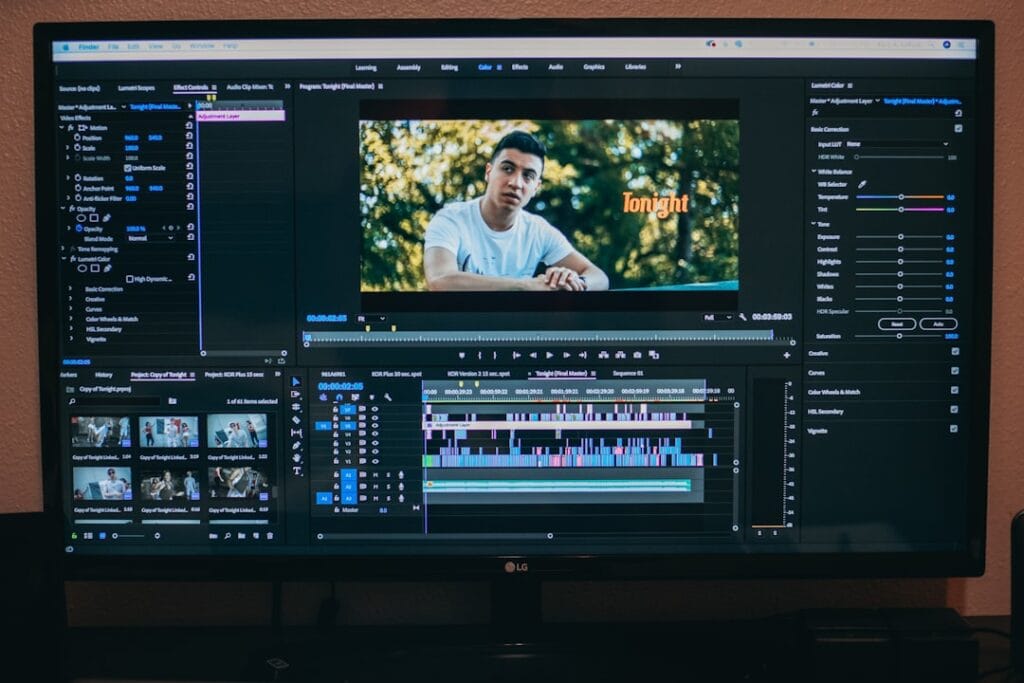
Google Drive does not re-encode or compress your video file when you upload it. The original file is stored byte-for-byte, and when someone downloads it, they get the exact file you uploaded. The quality loss people complain about comes from Google Drive’s preview player, which caps playback resolution at 1920 x 1080 and adapts the stream based on the viewer’s internet speed. If your original video is 4K or higher, the preview will downscale it, but the downloaded file retains full resolution.
Why the Preview Player Downgrades Your Video
Google Drive’s built-in video player is designed for quick previews, not for professional-quality playback. It transcodes videos on the server side and serves an adaptive bitrate stream. This means a viewer with a slow connection sees a lower-resolution version, even if the source file is pristine. For someone just reviewing a cut, that is fine. For a client approving final color grading or a collaborator checking fine detail, the preview player is not reliable enough.
Best File Formats for Google Drive Video
Google Drive supports a range of video formats, but not all of them stream or download equally well. Here is what we recommend:
- MP4 (H.264 video, AAC audio): The most reliable format. Streams correctly in the preview player, downloads cleanly, and plays on virtually every device. Use this for client deliverables.
- WebM (VP9 or AV1): Works well in browsers and produces smaller files at high quality. Good for web embeds.
- MOV (ProRes): Popular with video editors, but large file sizes eat through storage fast. The preview player may not handle ProRes well. Recommend viewers download the file instead of streaming.
- MKV or AVI: Google Drive will store these, but the preview player may fail to load them. If you must share these formats, provide a direct download link rather than relying on preview.
Upload Limits to Keep in Mind
Google Drive supports video files up to 5 TB in size, assuming you have that much storage available. Google Workspace accounts have a daily upload limit of 750 GB. For most content creators, this is not a concern, but if you are working with raw 4K footage or ProRes files, keep an eye on your storage quota. A single 10-minute ProRes 422 clip can run 20 GB or more.
The bottom line: if quality matters, share a direct download link rather than sending people to the preview page. That way viewers get your original file at full resolution, not a transcoded stream.
Generate a Direct Download or Embed Link

The standard Google Drive share link opens a preview page. To skip that preview and send viewers straight to a download or embed the video on your site, you need to modify the URL. Both methods use the same file ID from your share link.
Direct Download Link Format
Take your share link’s file ID and plug it into this URL format:
https://drive.google.com/uc?export=download&id=FILE_ID
When someone clicks this link, their browser downloads the file directly instead of opening the Drive preview page. No “Open in Google Drive” button, no preview player, no sign-in prompt. Just the file.
For large files (roughly 100 MB and above), Google sometimes inserts a confirmation page before starting the download. To bypass that, add the confirm=yes parameter:
https://drive.usercontent.google.com/download?id=FILE_ID&export=download&confirm=yes
This newer endpoint handles large files more reliably and avoids the confirmation screen that breaks automated downloads or frustrates viewers who do not understand why they are being asked to confirm.
If you want to skip the manual URL editing, our direct download link generator does this automatically. Paste your share link, and the tool outputs a working download URL in seconds. For a full walkthrough of the manual process, that guide covers edge cases and troubleshooting.
Embed Link Format
To embed the video on your website with an iframe, use this format:
https://drive.google.com/file/d/FILE_ID/preview
Wrap it in an iframe like this:
Replace FILE_ID with your video’s ID. The allow="autoplay; fullscreen" attribute enables both features in the embedded player. For a complete walkthrough of embedding Google Drive videos, including responsive CSS and a clean player option that strips Google’s branding bar, see our guide to embedding Google Drive video on your website.
Direct Download vs. Embed vs. Standard Share Link
| Method | What the Viewer Sees | Best For | Setup Time |
|---|---|---|---|
| Standard share link | Google Drive preview page with player | Casual sharing, quick review | 30 seconds |
| Direct download link | File downloads immediately, no preview | Delivering final files to clients | 1 minute (or instant with generator) |
| Embed link (iframe) | Video plays on your website | Landing pages, course sites, portfolios | 2 to 3 minutes |
Share With Viewers Who Don’t Have Google Accounts
“Anyone with the link” is the setting that makes Google Drive video sharing work for non-Google users. When this is enabled, viewers do not need to sign in, create an account, or have any Google credentials. They click the link, and the video opens in their browser. This is the single most important setting for content creators and marketers, because you cannot control what email address or platform your audience uses.
The Problem with Restricted Sharing for Public Audiences
If you share a video with specific email addresses (Restricted mode), every viewer must sign in with that exact email to access the file. If your client’s company uses Microsoft 365 and they do not have a Google account tied to that email, they will hit a wall asking them to “Request access.” That request comes to your inbox, you approve it, and the client gets an email with a new link. This adds days of delay for what should be a 10-second download.
How to Verify Your Link Works for Non-Google Users
Before sending a link to a client or publishing it in a campaign, test it in an incognito or private browsing window where you are not signed into any Google account. Paste the link. If the video opens and plays, you are good. If you see a sign-in prompt or “You need permission” screen, go back and change the sharing setting to “Anyone with the link.”
This five-second test catches the most common sharing failure before it reaches your audience. Many marketers skip it, assume the link works because it opened fine in their own browser (where they are already signed in), and discover the problem only when a client reports they cannot access the file.
What If Your Video Won’t Play for Others?
When a shared Google Drive video will not play for someone else, the cause is almost always one of three things: permissions are still set to Restricted, the file format is not supported for streaming, or the download quota has been exceeded. Here is how to diagnose and fix each one.
“You Need Permission” Screen
This is a permissions block. The file is still set to Restricted sharing, or you shared it with specific emails and the viewer is not on the list. Fix: right-click the file, select Share, change “General access” to “Anyone with the link”, and click Done. Re-copy the link and resend it.
Video Shows a Black Screen or Will Not Load
The file format may not be supported for browser streaming. Google Drive’s preview player handles MP4 (H.264) and WebM reliably. MOV, AVI, and MKV files may play in Drive’s own preview but fail to load when shared via link or embedded. Fix: re-export the video as MP4 with H.264 encoding and re-upload. If you cannot re-export, share a direct download link instead so viewers download and play the file locally.
“Download Quota Exceeded for This File”
This error appears when a specific file has been downloaded or previewed too many times in a short window. It is a rate limit on Google’s end, not a permissions issue. The most reliable fix is to make a copy of the file in your own Drive and share the copy. For a full breakdown of all three fixes, including when each applies, see our guide on Google Drive download quota exceeded fixes.
Workspace Admin Blocking External Sharing
If you are using a Google Workspace account through work or school, your organization’s admin may have disabled external sharing. In that case, “Anyone with the link” will not appear as an option, or it will appear but revert to Restricted after you save. You will need to either ask your admin to enable link sharing for your account, or upload the video using a personal Google account instead.
Skip the Manual Link Setup
If your workflow involves generating shareable download links frequently, you do not need to manually edit URLs every time. Google Drive Downloader offers free tools that simplify the process: paste a share link and get a working download URL in seconds. The conversion happens entirely in your browser, and your sharing URL is never sent or stored anywhere.
Paste your Google Drive share link into the Direct Link Generator at the top of that page and get your download URL instantly. No preview page, no manual URL editing, no sign-up required. We never ask for your Google account credentials or personal information. Your data is safe with us.
Frequently Asked Questions
Can someone watch a Google Drive video without a Google account?
Yes, as long as the file’s sharing setting is set to “Anyone with the link.” The viewer does not need to sign in or create a Google account. If the file is set to Restricted, only people with approved email addresses can access it, and they must sign in.
Does Google Drive compress video quality when sharing?
No, Google Drive stores your original file without compression. However, the preview player caps playback at 1920×1080 and adapts the stream to the viewer’s internet speed. To deliver full original quality, share a direct download link instead of relying on the preview player.
How do I create a direct download link for a Google Drive video?
Copy the file ID from your share link (the string between /d/ and /view) and insert it into this URL: https://drive.google.com/uc?export=download&id=FILE_ID. For large files, add &confirm=yes to skip the confirmation page. Alternatively, paste your share link into the Google Drive Downloader Direct Link Generator to get the download URL automatically.
Why does my Google Drive video link show a sign-in prompt for some viewers?
This usually means the file is set to Restricted sharing instead of “Anyone with the link.” Change the sharing setting in Google Drive by right-clicking the file, selecting Share, and changing General access to “Anyone with the link.” Test the link in an incognito window to confirm it works for logged-out viewers.
What video formats work best for sharing on Google Drive?
MP4 with H.264 video and AAC audio is the most reliable format for both streaming in the preview player and downloading. WebM also works well. MOV files may not stream properly in the preview player, and MKV or AVI files may fail to load entirely when shared via link. For unsupported formats, use a direct download link instead.