Title: Unlocking the Power of Google Drive Direct Download Links – A Complete How‑To Guide
—
🎯 Introduction: Why a Direct Download Link Matters
Ever tried to share a large PDF, a high‑resolution video, or a zip file via Google Drive, only to watch your recipients stumble over the “Preview” screen, click “Open with…”, or get stuck on the dreaded “Cannot open file” warning?
That friction is the enemy of productivity, especially for teachers, marketers, developers, and anyone who needs to deliver files instantly and without extra clicks.
Enter the Google Drive direct download link – a URL that points straight to the file itself, bypassing the preview page and prompting an automatic download. With the right link, you can embed files in newsletters, host software installers on your website, or simply give a friend a one‑click download button.
In this post we’ll demystify how Google Drive generates share links, walk you through three reliable methods to convert them into direct download URLs, cover best‑practice security tips, and show you how to automate the process for bulk files. By the end, you’ll be able to turn any Drive file into a clean, click‑to‑download link that works on desktop and mobile alike.
—
1️⃣ Understanding Google Drive Share Links – The Building Blocks
Before you can create a direct download link, you need to know what Google Drive actually gives you when you click Share → Get link.
1.1 The Default Share URL
“`
https://drive.google.com/file/d/FILE_ID/view?usp=sharing
“`
- FILE_ID – a 33‑character alphanumeric string that uniquely identifies the file in Drive.
- `view` – tells the browser to open the Google Drive preview UI.
- `usp=sharing` – a parameter that simply marks the link as a “shareable” URL.
- `uc` stands for “download content”.
- `export=download` tells Google’s backend to serve the raw file.
- `id=FILE_ID` is the same identifier you saw in the share link.
- You have 1‑5 files to share.
- You need a quick, no‑code solution.
- You’re comfortable copying and pasting IDs manually.
- No extra download step – the file is delivered in the requested format directly.
- Version control – the exported file reflects the latest version stored in Drive, so you never have to re‑upload a PDF after edits.
- One‑off link – Call `getDirectDownloadLink(‘FILE_ID’)` from the Apps Script console.
- Bulk generation – Pass the folder ID to `generateLinksForFolder(‘FOLDER_ID’)`. The function returns an array of file names and direct URLs, which you can copy into a spreadsheet or JSON file.
- Use “Anyone with the link → Viewer” only for files that are truly public (e.g., marketing assets, open‑source binaries).
- For internal documents, keep the sharing setting to Restricted and distribute the direct link via a secure channel (company Slack, internal portal).
- Spread downloads across multiple files (split a large archive).
- Use a CDN (e.g., Cloudflare) to cache the file after the first download.
- Consider Google Cloud Storage for truly high‑volume distribution.
- Rename files clearly (e.g., `ProductManualv2.pdf`).
- Provide context in the surrounding text (“Click the button below to download the PDF version of our guide”).
- Never ask for personal information on the download page (Google Drive never asks for passwords after the link is clicked).
- Manually craft a single link in seconds.
- Export Google Docs/Sheets/Slides as PDFs, CSVs, or PPTX files on the fly.
- Automate bulk link generation with a lightweight Apps Script, keeping large libraries organized and instantly shareable.
1.2 Why the Preview Page Is a Problem
The preview page adds an extra step: the user must click the Download button or right‑click → “Download”. For large files, that extra UI can cause confusion, especially on mobile browsers that hide the download button behind menus.
1.3 What a Direct Download Link Looks Like
A true direct download URL strips away the preview UI and forces the browser to start the download immediately:
“`
https://drive.google.com/uc?export=download&id=FILE_ID
“`
Understanding this transformation is the first step toward mastering Google Drive file distribution.
—
2️⃣ Method #1 – Manual Conversion (The Quick‑Fix)
If you only need a handful of files, the fastest way is to edit the URL yourself.
2.1 Step‑by‑Step
1. Get the shareable link
– Right‑click the file → Get link → set Anyone with the link to Viewer (or Commenter if you want read‑only). Click Copy link.
2. Extract the FILE_ID
– The link will look like `https://drive.google.com/file/d/1aBcD_EfGhIjKlMnOpQrStUvWxYz/view?usp=sharing`.
– The string between `/d/` and `/view` (`1aBcDEfGhIjKlMnOpQrStUvWxYz`) is the FILEID.
3. Build the direct link
– Paste the ID into the template: `https://drive.google.com/uc?export=download&id=FILE_ID`.
4. Test it
– Open the new URL in an incognito window. The file should start downloading automatically.
2.2 When to Use This Approach
2.3 Common Pitfalls
| Issue | Why It Happens | Fix |
|——-|—————-|—–|
| “Sorry, the file you have requested does not exist.” | The file is not publicly viewable (link set to “Restricted”). | Change sharing settings to Anyone with the link → Viewer. |
| “Your file is too large for Google to scan for viruses.” | Google adds a warning page for files >100 MB. | The direct link still works; the warning page appears first. Users must click “Download anyway”. |
| Broken link after moving the file | Moving a file to a different folder changes its ID? | No – moving does not change the ID. Only renaming or copying creates a new ID. |
—
3️⃣ Method #2 – Using Google Drive’s “Export” Parameter for Specific File Types
Sometimes you want the file to be served in a particular format (e.g., a Google Doc as PDF). Google Drive’s `export` parameter handles that elegantly.
3.1 Export Syntax
“`
https://docs.google.com/document/d/FILE_ID/export?format=pdf
“`
Replace `document` with `spreadsheets`, `presentation`, or `forms` depending on the file type.
| File Type | Export URL Pattern | Common Formats |
|———–|——————-|—————-|
| Google Docs | `https://docs.google.com/document/d/FILE_ID/export?format=pdf` | `pdf`, `docx`, `odt`, `rtf`, `txt`, `html` |
| Google Sheets | `https://docs.google.com/spreadsheets/d/FILE_ID/export?format=xlsx` | `xlsx`, `csv`, `pdf`, `ods` |
| Google Slides | `https://docs.google.com/presentation/d/FILE_ID/export/pdf` | `pdf`, `pptx`, `txt`, `png` |
3.2 Why Use Export?
3.3 Practical Example
You have a project brief stored as a Google Doc and you want to embed a “Download Brief (PDF)” button on your website:
1. Open the Doc → File → Share → Get link → set to Anyone with the link → Viewer.
2. Copy the file ID (`1ZxY…`).
3. Build the export link:
“`
https://docs.google.com/document/d/1ZxY…/export?format=pdf
“`
4. Use that URL as the `href` of your button. Visitors will receive a PDF instantly, no Google preview involved.
—
4️⃣ Method #3 – Automating Direct Links with Google Apps Script
When you manage dozens or hundreds of assets—think a digital product store or an online course platform—manual conversion becomes tedious. Google Apps Script (GAS) lets you generate direct download URLs programmatically.
4.1 Setting Up the Script
1. Open Google Drive → click New → More → Google Apps Script.
2. Replace the default code with the following function:
“`javascript
/**
* Returns a direct download link for a given file ID.
*
* @param {string} fileId The Drive file ID.
* @return {string} Direct download URL.
*/
function getDirectDownloadLink(fileId) {
var file = DriveApp.getFileById(fileId);
// Ensure the file is shared publicly
file.setSharing(DriveApp.Access.ANYONEWITHLINK, DriveApp.Permission.VIEW);
return ‘https://drive.google.com/uc?export=download&id=’ + fileId;
}
/**
* Generates direct links for all files in a specific folder.
*
* @param {string} folderId The Drive folder ID.
* @return {Object[]} Array of objects {name, link}
*/
function generateLinksForFolder(folderId) {
var folder = DriveApp.getFolderById(folderId);
var files = folder.getFiles();
var result = [];
while (files.hasNext()) {
var f = files.next();
var link = getDirectDownloadLink(f.getId());
result.push({ name: f.getName(), link: link });
}
return result;
}
“`
3. Save the project (e.g., “DriveDirectLinks”).
4. Click Run → generateLinksForFolder and authorize the script when prompted.
4.2 Using the Script
4.3 Exporting the Results
To dump the results into a Google Sheet:
“`javascript
function writeLinksToSheet() {
var folderId = ‘YOURFOLDERID’;
var data = generateLinksForFolder(folderId);
var ss = SpreadsheetApp.create(‘Direct Download Links’);
var sheet = ss.getActiveSheet();
sheet.appendRow([‘File Name’, ‘Direct Download URL’]);
data.forEach(function(item) {
sheet.appendRow([item.name, item.link]);
});
}
“`
Run `writeLinksToSheet()` and you’ll have a ready‑to‑publish list of links.
4.4 Advantages of the Script Approach
| Benefit | Explanation |
|———|————-|
| Scalability | Handles thousands of files with a single click. |
| Consistency | Guarantees every link follows the exact `uc?export=download` pattern. |
| Permission Control | Automatically sets each file to “Anyone with the link → Viewer”. |
| Integrations | Output can be consumed by APIs, static site generators, or email newsletters. |
—
5️⃣ Best Practices & Security Considerations
Even though direct download links are convenient, they expose your files to anyone who possesses the URL. Follow these guidelines to keep your data safe while still enjoying the benefits.
5.1 Limit Access When Possible
5.2 Add Expiration with Google Workspace
If you have a Google Workspace (formerly G Suite) account, you can set link expiration dates:
1. Share the file → click Settings (gear icon) → Link expiration.
2. Choose a timeframe (e.g., 7 days).
When the link expires, the direct download URL stops working, protecting time‑sensitive content.
5.3 Monitor Bandwidth & Quotas
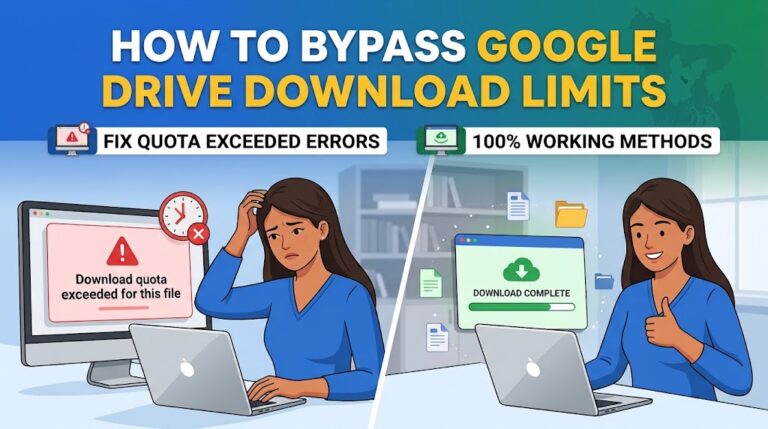
Google Drive imposes download quotas for high‑traffic files. If you exceed the limit, users may see a “Quota exceeded” error. Mitigation strategies:
5.4 Avoid “Phishing” Red Flags
Because the URL domain (`drive.google.com`) is trusted, malicious actors sometimes mask harmful files behind direct links. To maintain credibility:
—
📌 Conclusion: Turn Google Drive Into a Seamless Delivery Engine
A Google Drive direct download link is more than a convenience—it’s a productivity booster that removes friction for every recipient, whether they’re on a laptop, tablet, or smartphone. By mastering the three methods outlined above, you can:
Remember to pair convenience with security: set appropriate sharing permissions, use expiration dates when available, and keep an eye on Google’s download quotas.
Key Takeaways
1. The core direct download URL format is `https://drive.google.com/uc?export=download&id=FILE_ID`.
2. For Google Workspace files, the `export` parameter lets you deliver PDFs, CSVs, and other formats directly.
3. Apps Script unlocks bulk processing, permission management, and easy export to Sheets or JSON.
4. Always balance public accessibility with data protection—use link expiration and monitor usage.
Now you have the toolkit to turn any Google