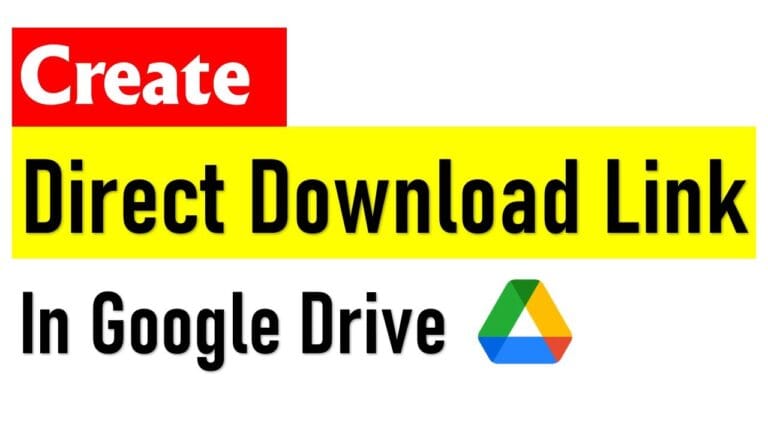
Title: How to Create a Google Drive Direct Download Link – A Step‑by‑Step Guide (2024)
—
Introduction – Why a Direct Download Link Matters
Ever tried to share a large PDF, a software installer, or a high‑resolution video from Google Drive, only to watch the recipient wrestle with the “Preview” screen, the “Open with” dialog, or a dreaded “File exceeds your quota” warning? It’s a common frustration that can turn a simple file‑share into a tech‑support nightmare.
The secret sauce is a Google Drive direct download link – a URL that forces the browser to start the download immediately, bypassing the preview page and any extra clicks. Whether you’re a teacher distributing worksheets, a developer sharing binaries, or a marketer delivering assets to clients, mastering direct download links saves time, improves user experience, and looks professional.
In this guide we’ll walk through everything you need to know: the theory behind Google Drive URLs, three reliable methods to generate a direct download link, how to troubleshoot the most common hiccups, and best practices for SEO‑friendly sharing. By the end, you’ll be able to turn any shared file into a one‑click download that works on desktop, mobile, and even inside email newsletters.
—
1. Understanding Google Drive URLs – From Shareable to Direct
Before you can create a direct download link, it helps to decode the anatomy of a regular Google Drive URL. When you click Share → Get link, Drive gives you something that looks like:
“`
https://drive.google.com/file/d/1A2bC3dEFgHiJkL4MnOP5qrStUvWXyz/view?usp=sharing
“`
- `file/d/` – Indicates the resource type (a file).
- `1A2bC3dEFgHiJkL4MnOP5qrStUvWXyz` – The unique file ID. This is the only part you really need.
- `view?usp=sharing` – Tells Drive to open the preview page with optional parameters (`usp` = “use sharing”).
- A Google Drive direct download link follows the simple pattern `https://drive.google.com/uc?export=download&id=FILE_ID`.
- You can generate it manually, automate it with Google Apps Script, or use browser extensions and third‑party tools for bulk operations.
- The file must be set to Anyone with the link can view; otherwise the direct download will fail.
- Watch out for quota limits, virus‑scan redirects, and large‑file confirmations – these are the most common roadblocks.
- For SEO, focus on descriptive anchor text, a well‑optimized landing page, clean file names, and structured data rather than trying to embed keywords in the URL itself.
A direct download link simply swaps the `view` endpoint for a download endpoint and strips the extra query string. The canonical format is:
“`
https://drive.google.com/uc?export=download&id=FILE_ID
“`
When a user lands on that URL, Google Drive returns a `Content‑Disposition: attachment` header, prompting the browser to download the file automatically.
Why the “uc” Endpoint?
The `uc` (short for “upload controller”) endpoint was originally used by Google’s own internal tools to manage file transfers. It still works today because it respects the same permission model as the regular sharing link: if the file is public or anyone with the link can view, the direct download works without authentication.
—
2. Three Proven Ways to Generate a Direct Download Link
Method A – Manual URL Editing (Fastest for One‑Off Files)
1. Get the shareable link
– Right‑click the file → Share → Copy link.
2. Extract the file ID
– The link contains a string between `/d/` and the next slash (`/`). Example: `1A2bC3dEFgHiJkL4MnOP5qrStUvWXyz`.
3. Build the direct link
– Paste the ID into the template:
“`
https://drive.google.com/uc?export=download&id=1A2bC3dEFgHiJkL4MnOP5qrStUvWXyz
“`
4. Test it
– Open a private/incognito window and navigate to the new URL. If the file starts downloading, you’re done.
When to use: Quick sharing of a single file, especially during live webinars or chat support.
Method B – Using Google Apps Script (Bulk Automation)
If you need to generate direct links for dozens or hundreds of files, a short Apps Script can do the heavy lifting.
“`javascript
function createDirectLinks() {
var folderId = ‘YOURFOLDERID’; // optional – limit to a folder
var folder = DriveApp.getFolderById(folderId);
var files = folder.getFiles();
var output = [];
while (files.hasNext()) {
var file = files.next();
var id = file.getId();
var name = file.getName();
var directUrl = ‘https://drive.google.com/uc?export=download&id=’ + id;
output.push([name, directUrl]);
}
// Write results to a new spreadsheet
var ss = SpreadsheetApp.create(‘Direct Download Links’);
ss.getActiveSheet().getRange(1,1,output.length,2).setValues(output);
}
“`
Steps to run:
1. Open Google Apps Script (script.google.com).
2. Paste the code, replace `YOURFOLDERID` if you want to target a specific folder.
3. Run `createDirectLinks`.
4. A new Google Sheet appears with two columns – file name and direct download URL.
When to use: Content creators, educators, or SaaS teams who maintain a library of assets that need public download links.
Method C – Third‑Party Tools & Chrome Extensions (No Coding Required)
Several free utilities automate the conversion:
| Tool | How it works | Pros | Cons |
|——|————–|——|——|
| Drive Direct Link Generator (Chrome Extension) | Adds a “Copy Direct Link” button to the Drive UI. | One‑click, works inside Drive. | Requires browser extension, may need periodic updates. |
| Online “Google Drive Direct Link” generators (e.g., gdurl.io) | Paste the shareable link, receive the direct link instantly. | No installation, works on any device. | Some services add ads or have rate limits. |
| Zapier / Integromat automation | Trigger on new file in Drive → output direct URL to Slack, email, or Google Sheet. | Scalable, integrates with other apps. | Requires paid plan for high volume. |
When to use: Teams that prefer UI‑based solutions or need to embed the conversion step into existing workflows without writing code.
—
3. Permissions – Making Sure the Direct Link Works for Everyone
A direct download link only works if the underlying file is accessible to the person clicking it. Google Drive offers three primary sharing settings:
1. Restricted – Only invited accounts can view. Direct link will return a “You need permission” error.
2. Anyone with the link – No sign‑in required; the file is effectively public. This is the sweet spot for direct downloads.
3. Public on the web – Indexed by search engines (rarely needed).
How to Set “Anyone with the link”
1. Right‑click the file → Share.
2. Under “Get link”, click the dropdown and select Anyone with the link.
3. Ensure the role is Viewer (not Editor unless you want collaborators).
4. Click Copy link and then Done.
Tip for SEO: If you want search engines to index the file (e.g., a downloadable whitepaper), you can choose Public on the web. However, be mindful of privacy and licensing.
—
4. Common Pitfalls & How to Fix Them
| Problem | Why it Happens | Fix |
|———|—————-|—–|
| “Quota exceeded” error | Google limits the number of downloads per file per day for public links. Heavy traffic (e.g., a viral ebook) can trigger the limit. | – Use a Google Cloud Storage bucket for high‑traffic files.
– Split large files into smaller parts.
– Rotate the file ID by re‑uploading and updating the link. |
| Redirect to a “Virus scan” page | Files larger than 100 MB trigger Google’s virus‑scan warning before the download starts. | No workaround; inform users that a brief extra page may appear. |
| Link broken after moving the file | Moving a file to a different folder does not change its ID, so the link remains valid. However, if you copy the file (creating a duplicate), the ID changes. | Always use the original file ID; avoid duplicate copies unless you need separate versions. |
| Direct link downloads a “download.html” page instead of the file | Some browsers cache the `uc?export=download` endpoint and treat it as a regular HTML page. | Add the `&confirm=t` parameter for large files:
“`
https://drive.google.com/uc?export=download&id=FILE_ID&confirm=t
“`
This forces a fresh download request. |
| SEO keywords not appearing | Over‑optimizing the URL with keywords can look spammy. | Keep the URL clean (just the ID) and focus on anchor text, page titles, and surrounding content for SEO. |
—
5. Best Practices for SEO‑Friendly Direct Downloads
1. Descriptive Anchor Text – Instead of “Click here”, use “Download the 2024 Social Media Trends PDF”. Search engines associate the anchor text with the file’s relevance.
2. Landing Page Optimization – Host the direct link on a dedicated page with a clear H1, meta description, and structured data (`File` schema). Example:
“`html
{
“@context”: “https://schema.org”,
“@type”: “DigitalDocument”,
“name”: “2024 Social Media Trends Report”,
“description”: “Comprehensive PDF analysis of emerging social platforms.”,
“url”: “https://drive.google.com/uc?export=download&id=FILE_ID”
}
“`
3. File Naming – Rename the file in Drive before sharing (e.g., `2024SocialMediaTrendsReport.pdf`). The file name appears in the download prompt, improving user trust and click‑through rates.
4. Add a “Download” Button – Use HTML `` tags styled as buttons; include `rel=”noopener”` for security.
“`html
<a href="https://drive.google.com/uc?export=download&id=FILE_ID"
class=”btn btn-primary”
target=”_blank”
rel=”noopener”>Download the Report
“`
5. Track Clicks – Append UTM parameters to the landing page URL (not the direct link) and use Google Analytics to measure conversions.
—
Conclusion – Key Takeaways
By mastering these steps, you’ll turn Google Drive from a simple cloud folder into a professional distribution hub—delivering files instantly, keeping users happy, and even boosting your site’s search visibility.
Ready to give your audience a frictionless download experience? Grab that file ID, swap in the `uc?export=download` endpoint, and watch the clicks turn into instant downloads. Happy sharing!