Google Drive vs Dropbox vs OneDrive: Which Cloud Storage Wins in 2026?
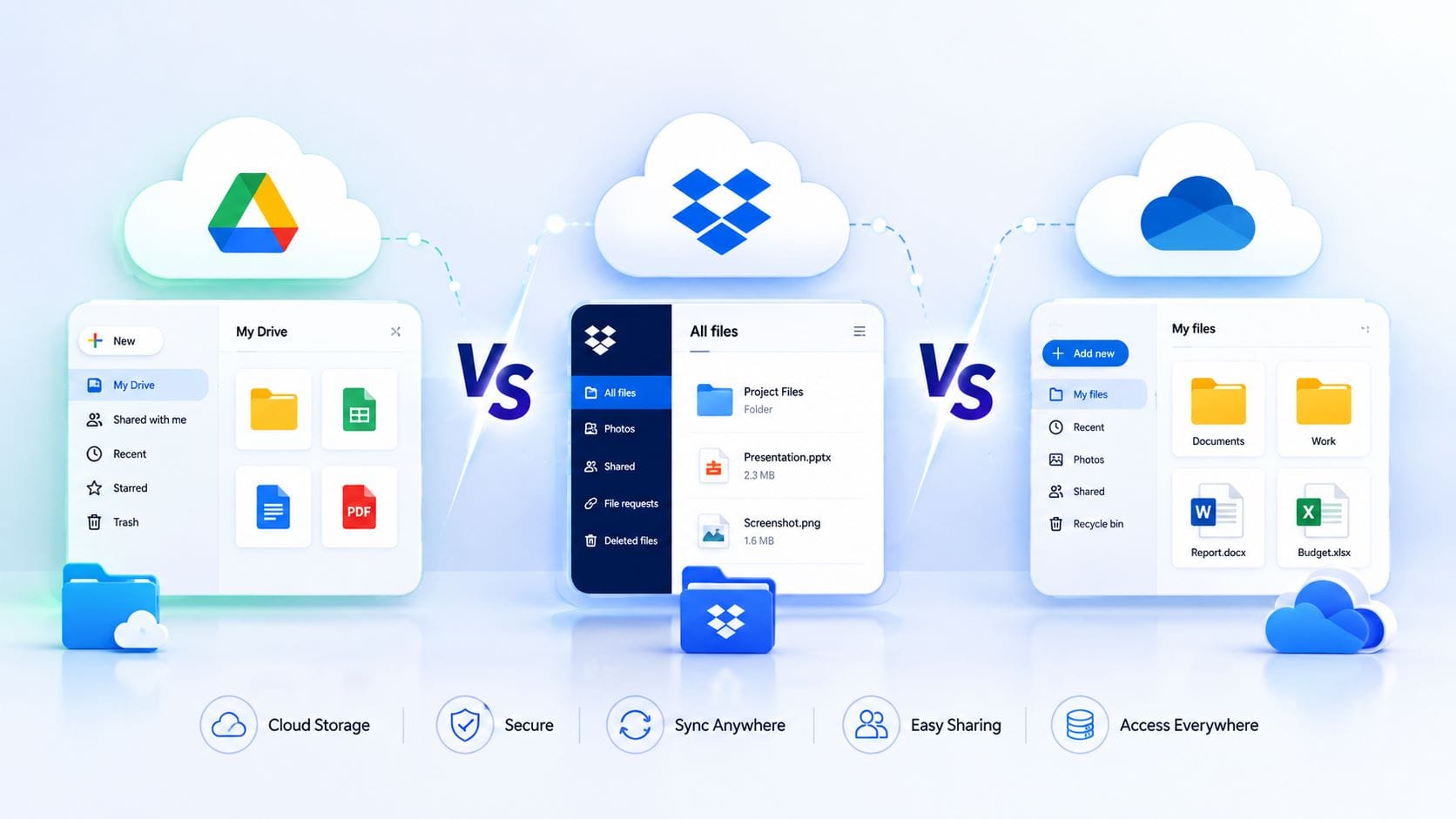
Picking between Google Drive vs Dropbox vs OneDrive feels harder than it should be, mostly because pricing, storage limits, and AI features on all three keep shifting every few months. If you’ve ever stared at three pricing pages in different tabs trying to figure out which one actually gives you the best deal, this guide is for you — we compared real, current 2026 pricing, storage, security, and AI features side by side so you can pick the right one in a few minutes instead of an afternoon.
Last updated: August 2026. Prices are in USD for US customers and can change without notice — always double-check the current price on the provider’s own pricing page before you buy.
Google Drive vs Dropbox vs OneDrive: Which Cloud Storage Wins in 2026?
Quick answer: If you already live inside Gmail and Google apps, Google Drive is the easiest and cheapest choice. If your whole household or office runs on Windows and Word, OneDrive (through Microsoft 365) gives you the most for your money. If you care most about rock-solid syncing, granular sharing controls, and you don’t mind paying a bit more, Dropbox is still the one power users trust.
That’s the short version. Now let’s actually dig into the numbers, because “trust me” isn’t good enough when you’re picking where your photos, contracts, and years of work are going to live.
Why this comparison still matters in 2026
A few years ago, this was a simple storage fight: who gives you the most gigabytes for the least money. That’s changed. All three companies have quietly turned into AI companies that also happen to store your files. Google has folded Gemini directly into Drive. Microsoft has done the same with Copilot inside OneDrive and Microsoft 365. Dropbox has its own AI search tool called Dash. Storage is now the least interesting part of the decision — the real differences are in price, how the AI features are bundled (and priced), and how each company protects your files from ransomware.
We pulled current pricing and feature details straight from each company’s own pages and recent product announcements, so the numbers below reflect what’s actually being sold right now, not what a comparison article said back in 2023 or 2024.
Pricing and storage plans, side by side
Google Drive (sold through Google One, now mostly branded “Google AI Pro”)
| Plan | Storage | Price | What you get |
|---|---|---|---|
| Free | 15 GB | $0 | Shared across Gmail, Google Photos, and Drive |
| Basic | 100 GB | $1.99/month (~$19.99/year) | Storage only, no Gemini AI features |
| Standard | 200 GB | $2.99/month | Storage only, family sharing up to 5 people |
| Google AI Pro | 2 TB | $9.99/month (~$99.99/year) | Gemini 3 Pro access (about 100 prompts a day), Google One VPN, Magic Eraser in Photos, family sharing for up to 6 people |
| Google AI Ultra | 30 TB | $249.99/month | Google’s top-tier AI access plus the largest storage pool Google sells |
A couple of things worth knowing before you buy: Google renamed its old “Google One Premium” plan to “Google AI Pro” in 2026, and folded a real chunk of Gemini access into that same 2 TB plan instead of charging separately for AI. If you don’t care about AI at all, the 100 GB and 200 GB tiers still exist and are cheaper. Also, Google raised prices in several countries starting July 27, 2026, so if you signed up a while back, don’t be surprised if your renewal price is a little higher than what’s advertised for new customers.
Dropbox
| Plan | Storage | Price | What you get |
|---|---|---|---|
| Basic | 2 GB | $0 | Sync on up to 3 devices, 30-day version history |
| Plus | 2 TB | $11.99/month ($9.99/month if billed yearly) | One user, unlimited devices, 30-day file recovery |
| Essentials | 3 TB | About $19.99/month ($16.58/month billed yearly) | Adds Dropbox Sign (e-signatures), 180-day file recovery, large file transfers up to 100 GB |
| Business (Standard) | 9 TB pooled | $18/user/month (around $15/user billed yearly), 3-user minimum | Shared team storage, admin console, 180-day recovery |
| Business Plus (Advanced) | 15 TB pooled | $30/user/month (around $24/user billed yearly) | Everything in Standard plus longer file recovery (up to a year) and stronger admin controls |
Dropbox’s free plan is genuinely small — 2 GB, unchanged for years — so it exists mostly as a taste test rather than something you’d actually rely on. Where Dropbox earns its higher price is in the details: Rewind (a full undo button for a folder or your whole account), file-request links that let clients upload to you without their own Dropbox account, and sync that a lot of long-time users still say feels faster and more reliable than the competition, especially with very large files.
OneDrive (sold as part of Microsoft 365)
| Plan | Storage | Price | What you get |
|---|---|---|---|
| Free | 5 GB | $0 | Basic OneDrive storage |
| Microsoft 365 Basic | 100 GB | $1.99/month (~$19.99/year) | Storage plus ad-free Outlook email, no desktop Office apps |
| Microsoft 365 Personal | 1 TB | $9.99/month (~$99.99/year) | Full desktop Word, Excel, PowerPoint, Outlook, plus Copilot AI now built in |
| Microsoft 365 Family | 6 TB total (1 TB per person) | $12.99/month (~$129.99/year) | Same as Personal, shared with up to 6 people, each with their own 1 TB and their own Copilot access |
| Microsoft 365 Business Basic | 1 TB per user | $6/user/month | OneDrive plus web/mobile Office apps and a custom business email |
Here’s the number that catches a lot of people off guard: Microsoft 365 Personal and Family got noticeably more expensive recently. Personal went from $6.99 to $9.99 a month, and Family went from $9.99 to $12.99, because Microsoft folded Copilot AI into the core subscription instead of selling it separately. In some regions you can still find a “Classic” plan at the old price with no AI included, but Microsoft has said that option is limited and may not stick around. If storage is genuinely all you want and you don’t care about AI writing help in Word, it’s worth checking whether a Classic plan is still available to you.
The one-line summary on price
Free storage: Google gives you the most (15 GB) — Dropbox gives you the least by a wide margin (2 GB). For paid plans, if you just want a lot of storage for one person and nothing else, Google’s 2 TB AI Pro plan at $9.99/month and Dropbox’s Plus at $9.99/month (annual) land at almost the same price for the same 2 TB — but Google throws in AI and a VPN, while Dropbox throws in better sync tools and Rewind. OneDrive only really wins on price if you were going to buy Microsoft Office anyway, since then the 1 TB of storage is essentially a free bonus on top of apps you already needed.
Collaboration: working with other people in real time
This is where your existing habits probably matter more than any spec sheet.
Google Drive is built around Docs, Sheets, and Slides, which let several people type in the same document at the same moment, see each other’s cursors, and leave comments or suggested edits. It’s genuinely one of the smoothest real-time editing experiences available, and it’s free the moment you have a Google account. Shared Drives (previously called Team Drives) let a whole department own files together, so nothing disappears when one employee leaves the company.
OneDrive does the same job through Word, Excel, and PowerPoint, both in the browser and in the full desktop apps, with presence indicators showing who’s editing what. If your team already lives in Outlook and Teams, sharing a file straight into a Teams chat feels completely natural because it’s the same ecosystem end to end.
Dropbox takes a different approach. It doesn’t try to replace Google Docs or Word — instead it wraps around whatever tools you already use, syncing files quickly and cleanly no matter which app created them. Dropbox Paper offers lightweight collaborative notes, and File Requests let outside collaborators (clients, contractors, anyone without a Dropbox account) drop files straight into a folder you control.
The new front line: AI features
This is genuinely the biggest shift since the last time most comparison articles were written, so it deserves its own section instead of a footnote.
- Google Drive’s Gemini can summarize long documents, generate tables and slides, create short audio overviews of files (up to 20 a day on the web), and even suggest how to organize a messy folder of loose files — though it will always ask before it actually moves anything.
- Microsoft’s Copilot inside OneDrive and the Office apps can compare multiple files, draft and rewrite text in Word, build formulas in Excel, and summarize what changed in a document. As mentioned above, this is now bundled into the core Personal and Family subscriptions rather than sold as a separate add-on.
- Dropbox Dash is Dropbox’s answer — an AI search tool that looks across Dropbox and other connected apps (Slack, Google Workspace, Jira) to answer questions in plain language instead of making you dig through folders. It’s still rolling out gradually as of mid-2026 and, notably, it’s sold as a separate product on top of a Dropbox Standard (or higher) plan rather than something every Dropbox user gets for free.
If AI-assisted writing and searching matter to you, Google and Microsoft currently give you more of it built into the price you’re already paying, while Dropbox treats AI as more of a premium add-on.
Security: how safe are your files really?
All three companies encrypt your files with AES-256 while they’re sitting on a server, and use TLS encryption while files are traveling between your device and their servers. That part is genuinely equivalent across all three — nobody wins that comparison.
Where it gets more interesting is ransomware protection, which all three have invested in heavily over the past year or so:
- Google Drive launched AI-powered ransomware detection for its desktop app, and as of March 2026 it’s fully rolled out (not just a beta test). Google says its newer detection model catches roughly 14 times more ransomware infections than the earlier version. When it spots trouble, syncing pauses automatically so an infected file can’t spread to the cloud, and you get a notification with a guided way to restore your files. One catch worth knowing: the automatic real-time detection and pausing is aimed at business and education accounts — regular free and personal accounts still get file recovery tools, just not the live alert.
- OneDrive offers ransomware detection and recovery to Microsoft 365 subscribers, letting you roll back your entire OneDrive to a point up to 30 days before an attack. It also has Personal Vault, a separately locked folder that needs a second identity check (fingerprint, face, PIN, or a code) to open — useful for scanned passports, tax documents, or anything you’d rather keep behind an extra lock.
- Dropbox handles this through Rewind, which lets you roll back an entire folder or your whole account to any point in a 30-day window on Plus, extending to 180 days on Essentials and Business plans (and up to a year with an add-on). It’s less automated than Google’s AI detection, but it’s a genuinely simple, reliable undo button when something goes wrong.
One honest note: none of these three are “zero-knowledge” services. That means Google, Microsoft, and Dropbox all hold the encryption keys to your files, not just you. That’s actually what makes features like web previews, full-text search inside your files, and AI summaries possible — but it also means these companies could technically access your data if legally compelled to, or in the course of investigating abuse. If you need files that literally nobody but you can ever open, that’s a different category of product (services like Proton Drive or Tresorit are built specifically around that promise), and it’s a genuine trade-off worth being aware of rather than something to worry about for everyday use.
Where each one feels most at home
| Cloud Storage | Best on | Where it feels a bit clunky |
|---|---|---|
| Google Drive | Chrome, Android, anything already inside a Google account | Windows File Explorer integration is fine but not as deep as OneDrive’s |
| OneDrive | Windows 10/11 — it’s built into File Explorer itself | Feels like a second thought on Mac and noticeably so on Linux |
| Dropbox | Consistent experience across Windows, Mac, and Linux alike | No free Office-style apps bundled in — you’re syncing files, not editing documents inside Dropbox itself |
If you’re on a Chromebook, Google Drive is effectively unavoidable and works best. If you’re on a Windows PC that came with Microsoft 365 pre-installed, fighting that integration to use something else is usually more effort than it’s worth. If you’re a freelancer bouncing between a Mac at home and a Windows machine at a client’s office, Dropbox’s consistency across operating systems is a real, practical advantage.
Which one should you actually pick?
- You’re a student, or you mostly use Gmail and a Chromebook or Android phone: Google Drive. The free 15 GB goes a long way, and the 2 TB plan is genuinely one of the better values in cloud storage once you factor in the AI and VPN it now includes.
- You already pay for Microsoft 365, or your whole household is on Windows: OneDrive. You’re basically getting a terabyte of storage as a bonus on top of software you needed anyway.
- You run a small creative agency, work with lots of outside clients, or you’ve been burned by a sync conflict before: Dropbox. The extra cost buys you Rewind, cleaner file requests, and sync that a lot of professionals still consider the most dependable of the three.
- You’re a small team of 3 or more that needs shared storage and admin controls: Compare Dropbox Business ($18/user/month) against Microsoft 365 Business Basic ($6/user/month) or Google Workspace Business Starter — Dropbox is usually the most expensive per person unless its specific features (Rewind, Sign, granular sharing permissions) are things your team will actually use daily.
- Security and compliance (HIPAA, GDPR) are non-negotiable for your business: All three offer this, but only on business/enterprise tiers with the right agreements in place — you’ll need to talk to sales, not just buy the consumer plan and assume you’re covered.
A few honest tips before you commit
- Turn on two-factor authentication no matter which one you pick. It’s free on all three and it’s the single biggest thing you can do to keep your account safe.
- Watch for renewal price jumps, especially on Google and Microsoft plans that have recently added AI features — the price you sign up at isn’t always the price you’ll pay next year.
- Don’t treat any of these as a full backup. Cloud storage keeps a copy of your files online and syncs changes, but it’s not the same as a dedicated backup with long-term version history for everything you own. If a folder is truly irreplaceable, an extra backup copy somewhere else is cheap insurance.
- Set link expiration dates when sharing sensitive files, regardless of provider — all three support this, and it’s an easy habit that closes off old shared links you’ve long forgotten about.
Frequently asked questions
Which is cheaper, Google Drive or Dropbox? For 2 TB of storage, they’re nearly the same price around $9.99–$11.99 a month. Google throws in AI features and a VPN at that price; Dropbox does not include those, but its sync and file-recovery tools are generally considered stronger.
Is OneDrive included free with Windows? Yes, a free 5 GB comes with every Microsoft account and is built into Windows 10 and 11. Anything beyond 5 GB requires a paid Microsoft 365 plan.
Which cloud storage service is most secure? All three use the same AES-256 encryption at rest and TLS in transit, and all three now offer ransomware detection and recovery. None of them are zero-knowledge providers, meaning the companies themselves hold the encryption keys.
Can I use more than one of these at the same time? Yes, plenty of people do — for example, free Google Drive for personal photos and paid OneDrive through a work Microsoft 365 account. There’s no rule against running two cloud drives side by side, though it does mean keeping track of what lives where.
Do I need to pay for AI features in Google Drive or OneDrive? On Google Drive, meaningful Gemini access now requires the 2 TB Google AI Pro plan. On Microsoft 365, Copilot is now included in the standard Personal and Family plans, though this did come with a price increase. A “Classic” no-AI Microsoft plan may still be available at the older price in some regions if you’d rather skip it.
The Cloud‑Storage Showdown You Can’t Ignore
Imagine you’ve just finished a massive project—slides, spreadsheets, high‑resolution images, and a handful of video clips. You need to back it up, share it with teammates across three time zones, and keep it safe from accidental deletion. Which service do you trust?
For years, Google Drive, Dropbox, and OneDrive have been the three heavyweights battling for the top spot in cloud storage. Each promises seamless syncing, robust collaboration, and airtight security, but they differ in pricing, integration, and the little features that can make a big impact on daily workflow. In this guide, we’ll break down the strengths and weaknesses of each platform, compare key metrics side‑by‑side, and give you actionable tips to pick the right solution for your personal or business needs.
Conclusion
Choosing between Google Drive, Dropbox, and OneDrive isn’t a matter of “one size fits all.” It’s about aligning storage pricing, collaboration habits, security requirements, and platform preferences with the unique workflow of your team or household.
This article reflects pricing and features publicly listed by Google, Dropbox, and Microsoft as of August 2026. Cloud storage pricing changes fairly often, so it’s worth a quick check on the official pricing page for each service before you subscribe.