Gmail Storage Full? 5 Ways to Free Space Fast
TL;DR: 5 Things Eating Your 15 GB
You opened Gmail to send an important email and got hit with the dreaded “gmail storage full” warning. Your free Google Account includes 15 GB shared across Gmail, Google Drive, and Google Photos. Here are the five fastest ways to reclaim that space without deleting your important emails:
- Delete large email attachments (not the emails themselves, just the space hogs)
- Remove orphaned Google Drive files you forgot you uploaded
- Compress Google Photos from Original quality to Storage Saver
- Empty your Spam and Trash folders in Gmail
- Permanently delete trashed files in Drive (they still count until you do)
What Counts Toward Your Google Storage
Every free Google Account gets 15 GB of storage shared across three services. Knowing which one is eating your space helps you target the right fix instead of guessing. You can check your exact breakdown anytime at the Google Storage Manager.
| Service | What Counts Toward Your 15 GB | Typical Space Hogs |
|---|---|---|
| Gmail | All messages and attachments, including Spam and Trash folders | Large attachments, promotional emails with embedded images |
| Google Drive | Uploaded files (PDFs, videos, images), Google Docs/Sheets/Slides created after June 1, 2021 | Old shared files, duplicate uploads, large videos |
| Google Photos | Photos and videos backed up in Original quality. Storage Saver uploads after June 1, 2021 also count | Phone backups in Original quality, 4K videos |
| Other | WhatsApp backups (Android), Android device backups, Meet call recordings | WhatsApp chat history with media attachments |
One detail that trips people up: files in shared folders only count against the owner’s storage, never the recipient’s. So if someone shared a 5 GB video folder with you, it doesn’t eat your quota. Also, Google Docs, Sheets, and Slides created before June 1, 2021 don’t count against your storage at all, so deleting those won’t free space.
Step 1: Find and Delete Large Email Attachments
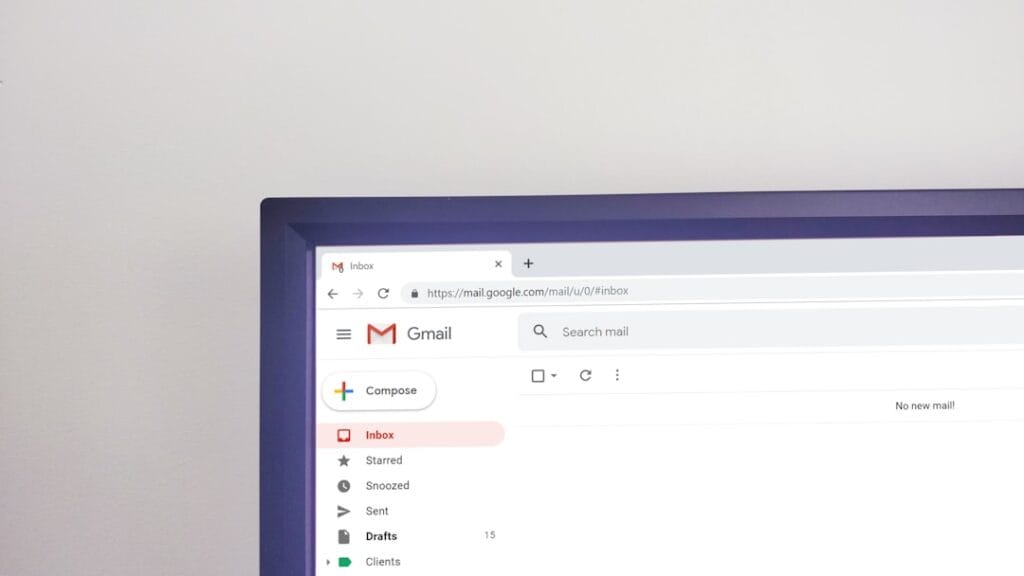
The fastest Gmail cleanup doesn’t mean deleting emails. It means finding the handful of messages with huge attachments that are quietly eating gigabytes behind the scenes. A single email with a 25 MB video attachment takes as much space as thousands of plain text emails.
Gmail has a search operator that lets you filter by file size. Here’s the exact path:
- Open Gmail in your browser.
- In the search bar at the top, type
has:attachment larger:10Mand press Enter. - Gmail shows every message with an attachment over 10 MB. Adjust the number to be more aggressive (try
larger:25Mto find the biggest offenders). - Check the boxes next to messages you no longer need.
- Click the Trash icon at the top to delete them.
The emails move to Trash, where they still count against your storage until you empty it (covered in Step 4). You can also try has:attachment larger:5M older_than:1y to find large attachments from over a year ago that you’ve probably forgotten about entirely.
If you want to keep the email but ditch the attachment, open the message, hover over the attachment, and click the download arrow to save it to your computer first. Then delete the email. You keep the content, and Gmail keeps the space.
Step 2: Clean Up Orphaned Google Drive Files

Orphaned files are the things you uploaded to Drive years ago and never look at: old project folders, duplicate PDFs, videos you shared once and never needed again. They sit there quietly consuming your quota while you blame Gmail for being full.
Here’s how to find and remove them:
- Go to drive.google.com.
- In the left sidebar, click Storage. This sorts all your files by size, largest first.
- Scroll through the list. The files at the top are your biggest space hogs.
- Right-click any file you don’t need and select Move to Trash.
You can also use the search bar with type:video or type:pdf to filter by file type if you know you have large videos or documents taking up space. This is especially useful if you’ve been using Drive as a dumping ground for shared files and exports.
A common mistake: people delete files from “Shared with me” thinking it frees their storage. It doesn’t. Files in “Shared with me” only count against the owner’s quota, not yours. Only files in “My Drive” and files you uploaded to shared drives count against your 15 GB.
If you’re not sure whether a file is safe to delete, there’s a safety net: you can recover deleted Google Drive files from Trash within 30 days. But don’t rely on that indefinitely, because Trash auto-deletes after 30 days, and manually emptying Trash is permanent.
Step 3: Switch Google Photos to Storage Saver
If your phone automatically backs up photos in Original quality, this is likely your single biggest storage drain. Original quality keeps the full resolution of every photo and video, which can eat 1 to 2 MB per image and far more for video. Switching to Storage Saver compresses photos to 16 MP and videos to 1080p, which looks identical on phones, tablets, and most monitors, and it can free up several gigabytes instantly.
Here’s how to compress your existing photo library:
- Go to photos.google.com on your computer.
- Click Settings (the gear icon) in the top right.
- Under “Storage saver,” click Recover storage.
- A dialog confirms how much space you’ll reclaim. Click Compress to confirm.
Google compresses all your existing Original quality backups down to Storage Saver quality. This process can take a while depending on how many photos you have, but the space savings are significant. New uploads will also default to Storage Saver going forward.
To verify this on your phone so future backups stay compressed:
- Open the Google Photos app.
- Tap your profile picture in the top right.
- Tap Photos settings > Backup > Backup quality.
- Select Storage saver.
One important caveat: photos backed up in Storage Saver quality (then called “High quality”) before June 1, 2021 don’t count against your storage at all. If you compress those photos again, it won’t free additional space because they were already free. The compression only helps for Original quality photos and for Storage Saver photos uploaded after June 1, 2021.
Step 4: Empty Spam and Trash
This is the quickest win in the entire cleanup process. Files in your Spam and Trash folders still count against your 15 GB until you permanently delete them. Many people delete emails or Drive files and assume the space is freed, but it isn’t until Trash is emptied. Google’s own support documentation puts it plainly: “Until you permanently clear items in these folders, they count against your storage limit.”
In Gmail
- Open Gmail in your browser.
- In the left sidebar, click More to expand the menu.
- Click Spam.
- Click Delete all spam messages now at the top.
- Go back to the left sidebar and click Trash.
- Click Empty Trash now at the top.
- Confirm when prompted.
In Google Drive
- Go to drive.google.com.
- Click Trash in the left sidebar.
- Click Empty Trash at the top right.
- Confirm when prompted.
If you did Steps 1 and 2 but checked your storage and nothing changed, this is almost certainly why. The files moved to Trash but were still sitting there, still counting against your quota.
Step 5: Permanently Delete Everything in Trash
This step deserves its own section because it’s the most commonly missed step in the entire process. When you delete a file in Gmail, Google Drive, or Google Photos, it goes to Trash. It sits there for 30 days, and during that entire time, it counts against your storage quota. Only permanently deleting frees the space.
Permanently Empty Gmail Trash
- Open Gmail.
- In the left sidebar, click More > Trash.
- Click Empty Trash now.
- Click OK to confirm.
Permanently Empty Drive Trash
- Go to drive.google.com.
- Click Trash in the left sidebar.
- Click Empty Trash (trash can icon, top right).
- Click Delete forever to confirm.
Permanently Empty Photos Trash
- Go to photos.google.com.
- Click Trash in the left sidebar.
- Click Empty trash at the top.
- Click Delete forever to confirm.
After permanently deleting, your storage usage should update within a few minutes. Google notes it can take up to 48 to 72 hours for the number to fully reflect large deletions, but the space is freed on the backend immediately. If you accidentally deleted something important and haven’t clicked “Empty Trash” yet, you can still restore it from Trash within 30 days. Once you permanently delete, recovery is not possible for personal accounts.
Still Out of Space? Your Upgrade Options
If you’ve done all five steps and you’re still hitting the 15 GB ceiling, it might be time to upgrade. Google One is Google’s paid storage subscription, and it adds storage on top of your free 15 GB for Gmail, Drive, and Photos. All paid plans include family sharing with up to 5 other people, so one subscription can cover a whole household.
| Plan | Storage | Monthly Price (US) | Best For |
|---|---|---|---|
| Free | 15 GB | $0 | Light email and document users |
| Basic | 100 GB | $1.99/mo | Most individuals with photo backups |
| Standard | 200 GB | $2.99/mo | Heavy photo and video users |
| AI Plus | 2 TB | $9.99/mo | Families and content creators |
| AI Pro | 5 TB | $19.99/mo | Large media libraries and 4K video |
The 2 TB and higher tiers also include Google AI features like Gemini Advanced and other benefits beyond storage. For current pricing in your country, check the official Google One plans page, because prices change periodically and vary significantly by region. Google has raised prices in several countries throughout 2025 and 2026.
If you just need a bit more room and don’t want to subscribe, another option is to download large files to your computer and then delete them from the cloud. You can share Google Drive file links with yourself or use our free tool to pull files down directly, then remove them from Drive to reclaim the space permanently.
Done cleaning up? If you still need to grab files from Google Drive without navigating the slow preview pages, paste your share link into the Google Drive Downloader at the top of this page and get your file in seconds, no preview page required. It’s free, requires no sign-up, and we never ask for your Google account credentials.
Frequently Asked Questions
Does deleting emails free up Google storage?
Only if you also empty Trash afterward. Deleted emails move to Trash and still count against your 15 GB for 30 days until you permanently delete them by clicking Empty Trash now.
How much storage does Gmail use vs Google Drive and Photos?
All three share the same 15 GB quota. Gmail includes messages, attachments, Spam, and Trash. Drive includes uploaded files and Google Docs created after June 1, 2021. Photos includes Original quality uploads and Storage Saver uploads after June 1, 2021.
Will compressing Google Photos reduce quality noticeably?
For most people, no. Storage Saver compresses photos to 16 MP and videos to 1080p, which looks identical on phones, tablets, and most monitors. You only notice a difference if you zoom in heavily or print large-format photos.
How long does it take for storage to update after deleting files?
Google says it can take up to 48 to 72 hours for the number to fully reflect large deletions, but the space is freed on the backend immediately. Most people see the storage number update within a few minutes.
Can I share Google One storage with family members?
Yes. All paid Google One plans allow sharing with up to 5 family members. Each person keeps their own private files, but the storage pool is shared across the whole family group.