

How to Share Files from Google Drive Securely [2026]
Learn how to share files from Google Drive securely with step-by-step instructions. Protect your documents, photos, and sensitive data with these proven security tips and best practices for safe file sharing in 2026!
How to Share Files from Google Drive Securely
You know that moment when you need to send an important document to someone, and you panic about who else might see it? I’ve been there countless times. Whether it’s client contracts, personal photos, or sensitive work files, sharing documents online always feels like walking a tightrope between convenience and security.
After working with cloud storage for over two decades, I’ve learned that Google Drive is like a double-edged sword. It’s incredibly convenient, but one wrong click can expose your private files to the entire internet. Trust me, I’ve seen it happen more times than I’d like to admit.
Today, I’m going to walk you through exactly how to share files from Google Drive securely. No complicated tech jargon, no confusing steps—just practical advice that actually works.

Why Google Drive Security Actually Matters
Let me tell you a quick story. A friend of mine once shared a link to what she thought was just her vacation photos. Turns out, she’d accidentally set the permissions wrong, and the link gave access to her entire Drive folder. Someone found financial documents she’d scanned and stored there. Nightmare, right?
The thing is, Google Drive is amazing. It’s free (up to 15GB), works seamlessly across devices, and makes collaboration super easy. But with great convenience comes great responsibility—and unfortunately, most people don’t realize how exposed their files can be until it’s too late.
Understanding Google Drive Sharing Basics
Before we dive into the security stuff, let’s cover the fundamentals. When you share something from Google Drive, you’re essentially creating a pathway for others to access that specific file or folder. Think of it like giving someone directions to your house—you can give them the exact address, or you can leave the front door wide open for anyone to walk in.
Read more: Understanding Cloud Storage Security Best Practices
The Three Main Sharing Methods
Google Drive gives you three primary ways to share files:
Direct Email Sharing: This is like sending a personalized invitation. You add specific email addresses, and only those people can access the file.
Link Sharing: This creates a URL that anyone with the link can use. It’s convenient but can be risky if the link falls into the wrong hands.
Making Files Public: This option makes your file discoverable by anyone on the internet. I rarely recommend this for personal or business files.
Step-by-Step Guide to Share Files from Google Drive Securely
Alright, let’s get into the actual process. I’ll break this down so clearly that even your grandma could follow along (no offense to tech-savvy grandmas out there!).
Method 1: Secure Email Sharing (Most Recommended)
This is my go-to method for anything remotely sensitive. Here’s exactly what you do:
Step 1: Open your Google Drive and find the file you want to share. Right-click on it and select “Share” (or click the Share button if you have the file open).
Step 2: In the popup window, you’ll see a box that says “Add people and groups.” Type in the email address of the person you want to share with. You can add multiple people here.
Step 3: Here’s the crucial part—click on the dropdown menu next to their name. You’ll see three options:
- Viewer (they can only look, not edit)
- Commenter (they can suggest changes but not make them)
- Editor (they can change everything)
Choose wisely based on what you actually need them to do.
Step 4: Before hitting send, look for the gear icon (settings) in the top right of the share window. Click it and make sure “Viewers and commenters can see the option to download, print, and copy” is UNCHECKED if you want maximum security.
Step 5: Add a personal message if you want, then click “Send.”
External link: Learn more about Google Drive permissions from Google’s official support page
Method 2: Secure Link Sharing (When You Need It)
Sometimes you need to share with people who might not have Gmail accounts, or you need to share quickly. Here’s how to do it safely:
Step 1: Right-click your file and select “Get link” or “Share.”
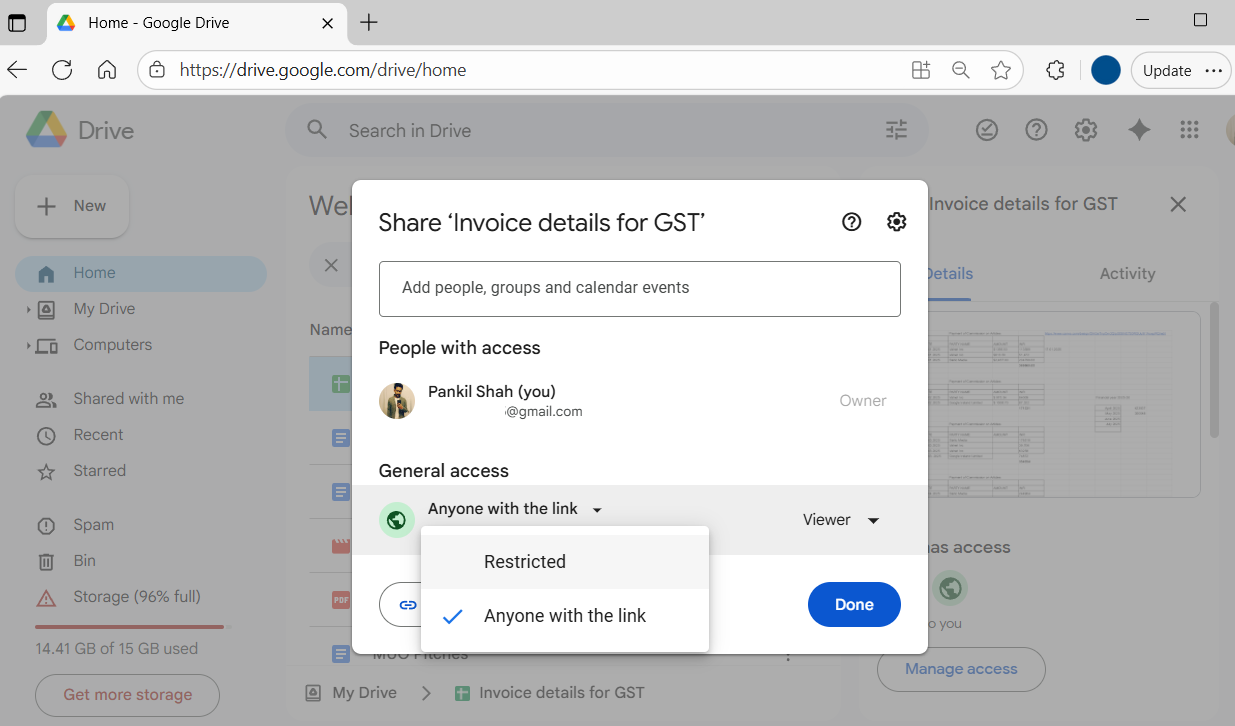
Step 2: At the bottom of the popup, you’ll see “General access.” This is THE most important setting. Click on “Restricted” (it might say “Only people added can open with this link”).
Step 3: If you absolutely must share via link, change it to “Anyone with the link.” But here’s my pro tip—immediately after that, click the dropdown that says “Viewer” and choose your permission level carefully.
Step 4: For extra security, click on the gear icon and disable downloading, printing, and copying.
Step 5: Copy the link and share it ONLY through secure channels. I prefer encrypted messaging apps over regular email for super sensitive stuff.
Method 3: Using Expiration Dates for Temporary Access
This is a game-changer that most people don’t know about. You can actually set an expiration date for shared access.
Step 1: Share your file using either method above.
Step 2: After adding the person’s email, look for the small clock icon or “Set expiration” option (this appears when you hover over their name in the share settings).
Step 3: Choose when you want their access to expire. Perfect for contractors, temporary team members, or one-time collaborations.
Read more: How to Manage Your Digital Privacy in 2026
Advanced Security Features You Should Enable
Let me share some power-user tips that’ll take your Google Drive security to the next level.
Enable Two-Factor Authentication
This isn’t technically a Drive feature, but it protects your entire Google account. If someone gets your password, they still can’t access your files without the second verification step. It takes two minutes to set up and could save you from disaster.
External link: Set up two-factor authentication on your Google Account
Use Password-Protected Links (The Secret Weapon)
Wait, Google Drive doesn’t actually have built-in password protection for links. Surprise! But here’s a workaround I use all the time:
- Create a shared Google Doc
- Put the actual link to your file inside that Doc
- Set the Doc to require email verification to access
It’s an extra step, but it works like a charm for sensitive documents.
Monitor Access and Activity
Here’s something cool—you can actually see who’s viewed your files and when. Right-click any file, select “View activity,” and Google shows you detailed access logs. I check this regularly for important documents.
Video tutorial: How to check file access activity in Google Drive.
Common Google Drive Security Mistakes (And How to Avoid Them)
After years of helping people with their cloud storage, I’ve seen the same mistakes over and over again. Let’s make sure you don’t make them.
Mistake #1: Using “Anyone with the Link” by Default
This is the biggest one. When you share a link without restricting it, literally anyone who gets that URL can access your file. It can be shared on social media, forwarded in emails, or posted in forums. Always start with “Restricted” and only open it up if absolutely necessary.
Mistake #2: Giving Editor Access When Viewer Would Work
I see this constantly in business settings. Someone needs to review a document, so you make them an editor. Then they accidentally (or intentionally) delete something important. Give the minimum permissions needed—you can always upgrade later.
Mistake #3: Forgetting About Shared Folder Inheritance
Here’s a tricky one. If you share a folder with someone, they automatically get access to everything inside it—even files you add later. I once added a personal tax document to a folder I’d shared with my entire team six months earlier. Yeah, that was awkward.
Mistake #4: Not Removing Access When It’s No Longer Needed
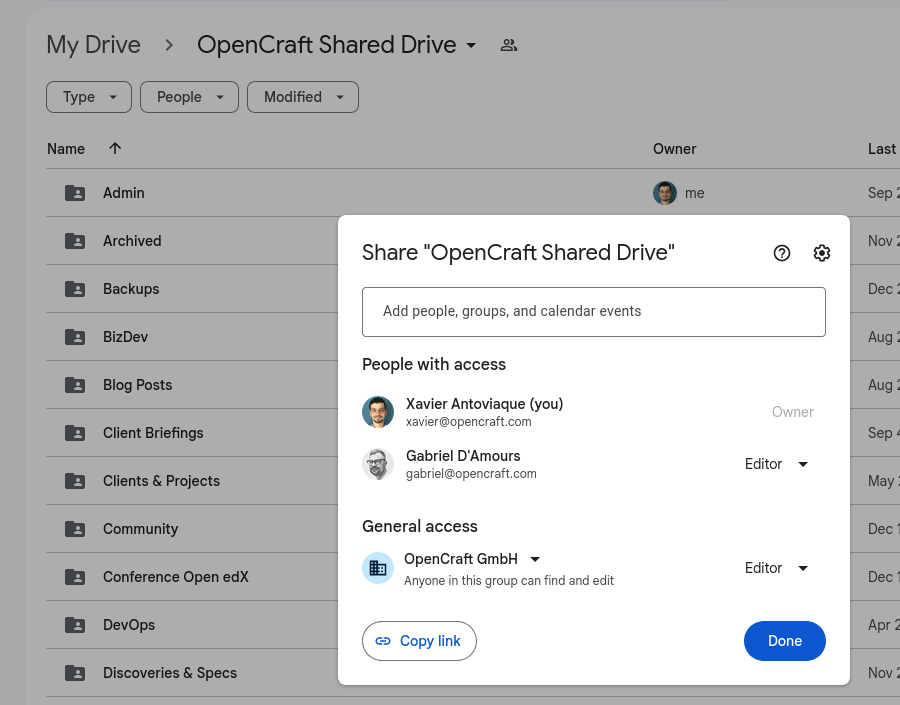
Old colleagues, former clients, that freelancer from two years ago—they might still have access to your files. I schedule a quarterly “access audit” where I go through my shared files and remove people who don’t need access anymore.
Mistake #5: Sharing Company Files from Personal Accounts
If you work for a company, use your work account for work files. Personal accounts don’t have the same admin controls and security policies. Plus, if you leave the company, you don’t want to be stuck managing files that belong to your former employer.
Read more: Best Practices for Organizing Digital Files and Folders
Special Security Considerations for Different File Types
Not all files need the same level of protection. Let me break down how I handle different types of documents.
Financial Documents (Tax Returns, Bank Statements, etc.)
These are crown jewels. For these files, I:
- Only use direct email sharing (never link sharing)
- Set to “Viewer” only and disable downloading
- Use expiration dates
- Consider additional encryption before uploading
Personal Photos and Videos
Photos are tricky because you often want to share them more freely, but you also don’t want them ending up on random websites. My approach:
- Use link sharing for convenience
- Always set to “Anyone with the link” rather than public
- Consider using Google Photos shared albums instead (better privacy controls)
- Never share anything you wouldn’t want your boss or grandmother to see
Work Collaborations and Projects
For active work projects where multiple people need to edit:
- Use email sharing with Editor permissions for core team members
- Set up a dedicated shared folder (makes management easier)
- Use Commenter permissions for reviewers
- Keep the folder structure organized so sensitive files can be isolated
Contracts and Legal Documents
These require maximum security:
- Direct email sharing only
- Viewer permissions with downloading disabled
- Consider watermarking (add text to the document itself)
- Keep master copies in a restricted folder
Mobile Security: Sharing Files from Your Phone
Let’s be honest—most of us probably share files from our phones more often than from computers these days. The good news? The Google Drive mobile app has all the same security features. The bad news? They’re easier to overlook on a small screen.
Quick Mobile Security Checklist
When sharing from your phone:
- Double-check who you’re sharing with (auto-fill can be sneaky)
- Tap those three dots and verify permissions before sending
- Be extra careful on public WiFi—wait until you’re on a secure network for sensitive files
- Enable device security (fingerprint or face unlock) for the Drive app
- Log out of Drive on borrowed or shared devices
[External link: Google Drive mobile app security guide]
What to Do If You’ve Accidentally Shared Something Publicly
Okay, so it happened. You just realized that document from three months ago has been set to “Anyone on the internet can view.” Don’t panic—here’s your emergency response plan:
Immediate Actions (First 5 Minutes):
- Open the file and click Share
- Change “General access” from Public back to Restricted
- Check the activity log to see if anyone unexpected accessed it
- If it’s truly sensitive (passwords, financial info), consider deleting it entirely and creating a new version
Follow-Up Actions (Next Hour):
- Change any passwords or sensitive information that was exposed
- Notify anyone who might be affected
- Review your other shared files to make sure they’re properly secured
- Document what happened so you learn from it
Long-Term Prevention:
- Set a monthly reminder to audit your shared files
- Consider using a password manager with secure note features for truly sensitive info
- Think twice before storing super-sensitive data in the cloud at all
[Read more: Data Breach Response: What to Do When Your Files Are Compromised]
Organizational Tips for Better Security
Security isn’t just about settings—it’s also about organization. A messy Drive is a security risk because you can’t easily track what you’ve shared with whom.
Create a Logical Folder Structure
I use this hierarchy:
- Personal (never shared)
- Work – Active Projects (shared with current collaborators)
- Work – Archived (access removed after project completion)
- Shared with Me (stuff others have shared)
- Public (things I’m okay with anyone seeing)
This makes it immediately clear what should be locked down and what can be more open.
Use Naming Conventions
I add dates and status to filenames: “2026-01-Q1_Financial_Report_CONFIDENTIAL.xlsx” tells me instantly that this file needs tight security controls.
Regular Security Audits
On the first Monday of every month, I spend 15 minutes:
- Reviewing who has access to my most important files
- Removing access from people who don’t need it anymore
- Checking for any “Anyone with the link” settings that should be restricted
- Deleting old files I no longer need
[Add image here: Alt text – “Google Drive folder organization for secure file sharing” | Caption: “A well-organized Drive makes security management much easier”]
Alternative Solutions for Maximum Security
Sometimes, Google Drive just isn’t secure enough for what you need. Here are some alternatives I use for ultra-sensitive information:
Encrypted Cloud Storage Services
Services like Tresorit, Sync.com, or SpiderOak offer end-to-end encryption. Even the service provider can’t read your files. The trade-off? Usually less convenient and often not free.
Password-Protected Zip Files
Before uploading sensitive files to Drive, I sometimes compress them into a password-protected zip file. Then I share the zip through Drive and the password through a different channel (like a phone call or text message).
Secure File Transfer Services
For one-time shares of sensitive documents, I use services specifically designed for secure transfers. These typically auto-delete files after they’re downloaded or after a set time period.
[External link: Comparison of secure file sharing services]
Teaching Others to Share Securely
If you work with a team or share files with less tech-savvy family members, you’ll need to help them understand security too.
Create Simple Guidelines
I made a one-page “How to Share Securely” guide for my team. It has screenshots and clear do’s and don’ts. Game-changer for consistency.
Lead by Example
When someone shares something with you insecurely, kindly let them know. “Hey, I noticed this file is set to public. Did you mean to do that?” Most people appreciate the heads-up.
Recommend Google Workspace for Teams
If you’re running a business, the paid Google Workspace plans offer admin controls, better security features, and usage monitoring. Worth every penny for professional use.
[Read more: How to Train Your Team on Cybersecurity Best Practices]
Future-Proofing Your Google Drive Security
Technology changes fast, and so do security threats. Here’s how I stay ahead:
Stay Updated on Google’s Features
Google regularly adds new security options. I check their “What’s New” announcements quarterly to see if there are features I should be using.
Keep Learning About Security Threats
Subscribe to a tech security newsletter or blog. Knowing about current phishing tactics or data breach trends helps you stay vigilant.
Review and Update Your Strategy Annually
What worked last year might not be sufficient this year. I do a comprehensive security review every January and adjust my practices based on new threats and tools.
Wrapping It All Up
Sharing files from Google Drive securely isn’t rocket science, but it does require attention to detail. The key takeaways?
- Always start with restricted access and only open it up if needed
- Choose the right permission level (Viewer, Commenter, or Editor)
- Use direct email sharing for sensitive documents
- Regularly audit who has access to your files
- Enable two-factor authentication on your Google account
- Think before you click Share
Look, I get it. Security can feel like a hassle when you’re in a hurry. But trust me, taking an extra 30 seconds to check your sharing settings is way less painful than dealing with a data breach or privacy violation.
[Add image here: Alt text – “Best practices for sharing files from Google Drive securely infographic” | Caption: “Follow these simple steps to keep your Google Drive files secure”]
Your Action Plan for Today
Here’s what I want you to do right after reading this:
- Go to your Google Drive right now
- Click on “Shared with me” and “Sharing” to see what’s currently shared
- Check if anything is set to “Anyone with the link” or “Public” that shouldn’t be
- Fix any security issues you find
- Enable two-factor authentication if you haven’t already
It’ll take maybe 10 minutes, and you’ll sleep better tonight knowing your files are properly secured.
Remember, security isn’t about being paranoid—it’s about being smart. You lock your car and your house, right? Your digital files deserve the same protection.
Now go forth and share securely!
[External link: Google Drive Help Center for additional support]
Have questions about Google Drive security? Found this guide helpful? Drop a comment below and let me know what security topics you’d like me to cover next. Stay safe out there!